93 Comments
Grunge Portrait
August 23, 2008Ever wanted to learn how to use grunge and splatter brushes effectively, we here we learn how to turn our face into a grungy portrait use various types of brushes and some more advanced techniques. Read on to learn how to achieve this effect in only a few simple steps and gain a better understanding of brushes in Photoshop with this tutorial.
Tutorial Files
If you are a PSD PRO member then download the PSD file and much more by going here.
Introduction
Grunge and splatter brushes are very common and are often seen in professional print design and even web design. However they are not always used effectively so I thought I’d try and teach some techniques while mimicking an effect used by designer, Jens Sjobergh . Before we start there are three types of brushes which you need; grunge, splatter and hair. Download two or three of each of these, it doesn’t matter which ones as they are all similar.
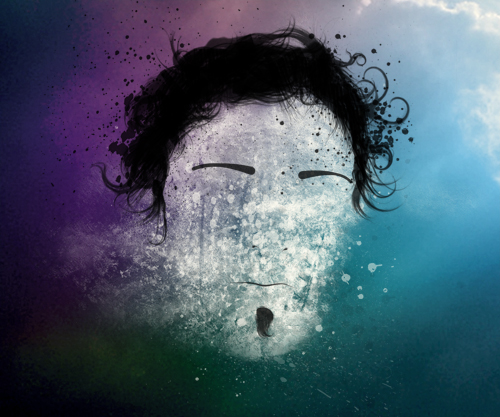
Step 1
Create a new document with dimensions; 1200x1000px. First we will create the background, I wanted to go for a noisy cloudy background, which may make you think about using the clouds filter then the noise filter. Although the clouds filter is very useful, it shouldn’t be used as a main part in any image. If, by looking at the final result of an image, you can tell the clouds filter has been used then it has definately been used wrongly. So instead we will use a stock image of clouds which you can download here. Copy it into your document then don’t bother scaling it, just move it until it looks good.

Step 2
Create a new layer then select the brush tool and choose a large soft brush, now set the foreground color to any bright color. Next just paint some random strokes over te image and use a few different colors and try and end up with a result that looks like the one below.

Step 3
This coloring is a bit to harsh so to soften it a bit go Filter>Blur>Guassian Blur and use a value of 250px. Now change the blend mode of this layer to color.

Step 4
We now need an image of a face for reference, any face will work so try using your own, if not then use the one I used which was just a stock image and can be found here. Copy it into your document then scale and move it until it is positioned similar to mine. Now change the opacity of this layer to 25%.
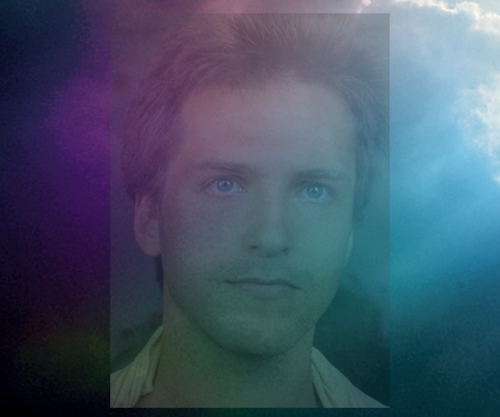
Step 5
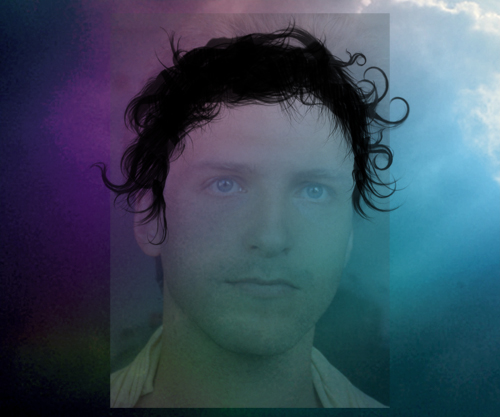
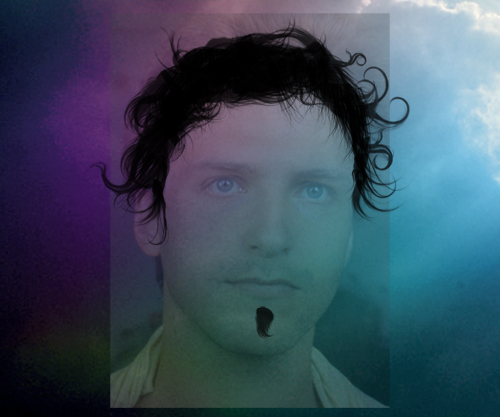
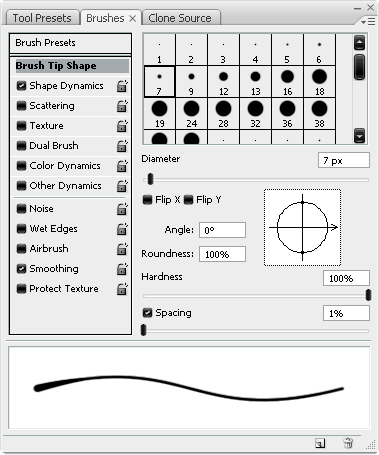
We are going to work on the hair first so get some of your hair brushes open and change the foreground color to black. A good idea would be to create a new layer group then put all the hair layers within this. For each of the images below I used a seperate layer so remember to create on before you start brushing. You may need to rotate the brush at times, to do this hit F5 to bring up the brushes panel then under Brush Tip Shape, move the the arrow that looks like a compass. Try and follow the outline of the person’s hair but don’t worry about being too accurate. I gave him a goatee in the last layer but this isn’t needed especially if you are a girl. You’re really just wantng to build the hair up layer by layer.
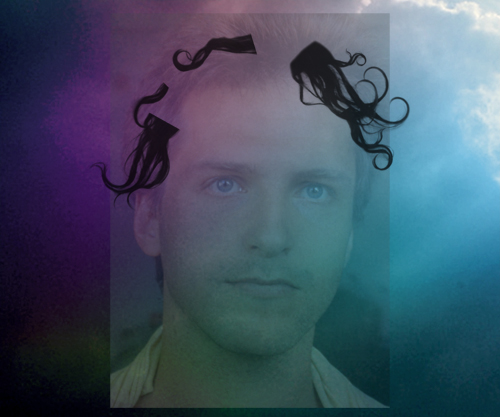
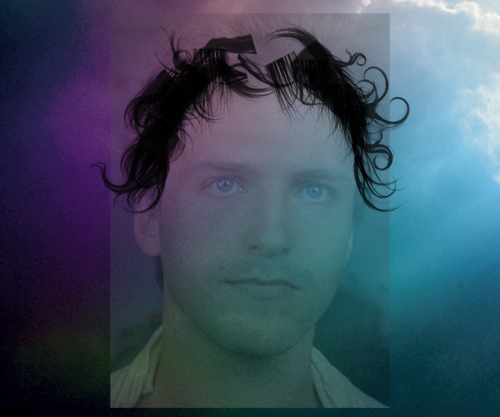
Step 6
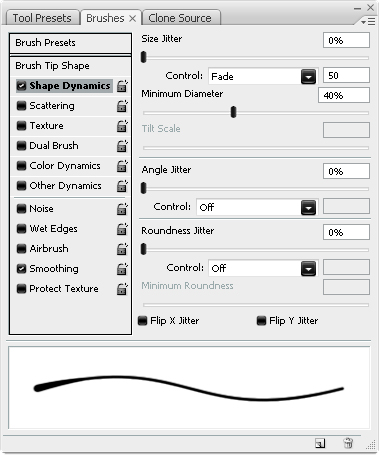
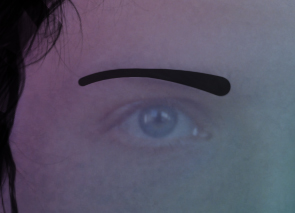
With the brush tool still selected, hit F5 then change the settings to match the ones below, this will be for the eyebrows so you may want to use a smaller brush if you want narrow eyebrows.
Step 7
Create a new layer then select the pen tool and in the main toolbar make sure the paths button is selected. Start by clicking at the thicker end of the eyebrow then at the other end click and drag to curve the path to match the eyebrow. Now select the brush tool (B) then hit Enter to stroke the path, the simulate pressure button doesn’t make a difference here. Do exactly the same for the other eyebrow in a new layer.
Step 8
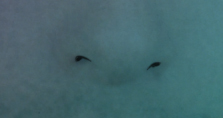
We want a smaller brush for the nostrils so either change it via the brushes panel or just press the [ button a few times and in a new layer create a smal path going round the nostrils then stroke it in the same way as you did in the last step. You may need to do some extra adjustments manually after you have done this with both nostrils.
Step 9
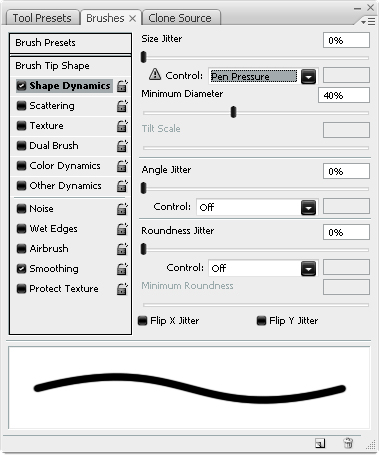
Go back into the brushes panel and select a 2px round brush and change the shape dynamics to match the image below.
Step 10
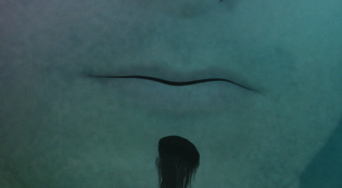
Create a path following the lips then stroke this path in the same way, this time making sure simulate pressure is checked. If you are using a female you make may want to outline the top and bottom lips in the same way.
Step 11
Below is what my image looked like at this point, feel free to add some more details like eyes and ears but I wasn’t aiming for a particularly realistic result. I touched up a few bits at this point and lowered the opacity of a few layers so that they were all a similar shade.
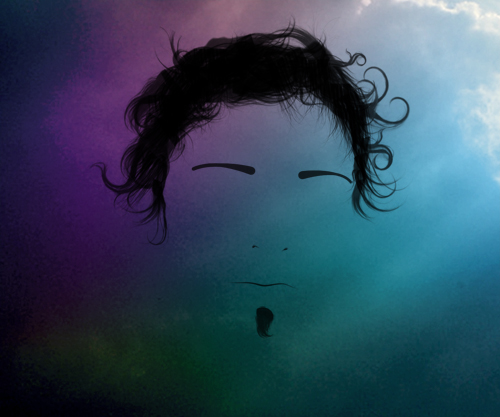
Step 12
Now it is time to use our grunge brushes so create a new layer below all the face and hair details but still above our reference image. Change the foreground color to #fffff1 then gover the face with different grunge brushes, you may want to adjust the opacity a bit.
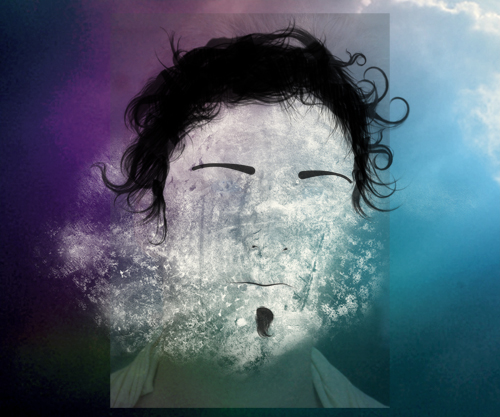
Step 13
Now we want to get rid of some of the grunge outwith the face, I thought it would look good to leave some at the left of the face. There is two ways to do this; erasor or layer masks, the latter of which is a much better choice. If you haven’t used layer masks before then check out this tutorial which will teach you some stuff about layer mask. If you still don’t feel confident then just use the erasor tool with a large soft low opacity brush. Work at it until it resembles the image below. Another optional thing that you can do here if you know how to do it is to add a displace filter to the grunge using the face as the map; this will make it follow the contours of the face more but is optional and won’t make a big deifference.
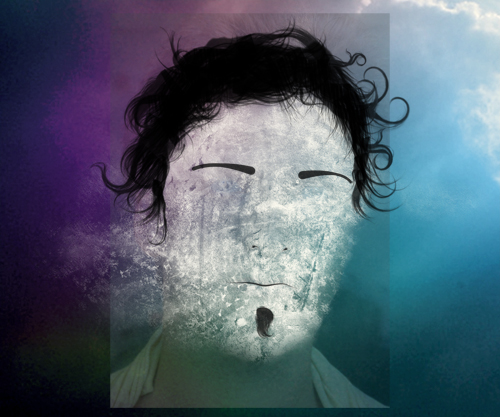
Step 14
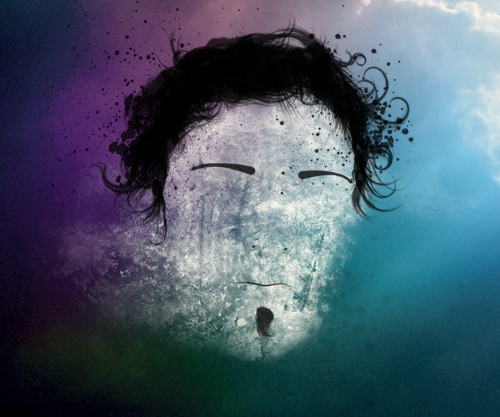
Now hide your reference image then create a new layer and select black as the foreground color. Create a layer below the hair and face details but above thr grunge. Now select some splatter brushes and use them around the hair. Also use some at a very low opacity around the face.
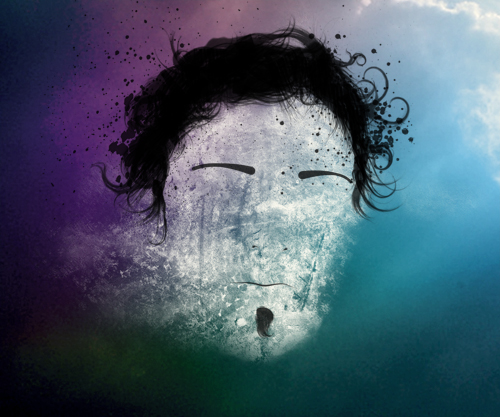
Step 15
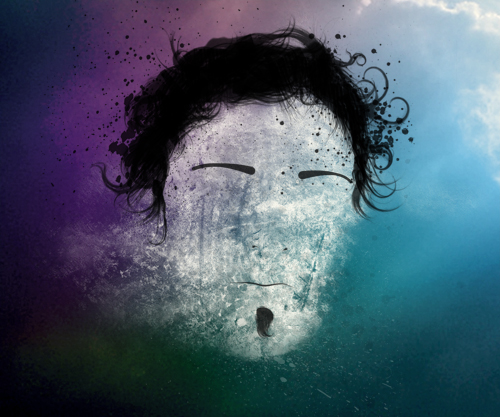
Now change the foreground color back to #fffff1 and in a new layer add some splatter brushes over the face and below the chin or anywhere you think it would look good.Now just adjust the opacity to suit and your done!

Similar Tutorials:
- Luminescent Lines
- Dance Photo Manipulation Part 2
- Create Smoke Text
- Awesome Snowboard Poster
- Spray Paint Text
Save and Share this Post
We like people who share our posts! Del.Icio.Us - StumbleUpon - Float - Reddit


August 23rd, 2008
autocarsinsurance » Blog Archive » Grunge Portrait:
[...] Original post by Ross [...]
August 23rd, 2008
NaldzGraphics:
wow!!!i really like the outcome of this tutorial.it looks very advance:)also i love grungy effects!!thanks for sharing your skills and keep them coming!!!.
Ronald
August 24th, 2008
bandpang:
nice tutorial .
I really love it!
August 25th, 2008
nitos:
that was beautiful! thanks man! :P
August 26th, 2008
fergus:
Thanks man
August 31st, 2008
Rufus:
It looks nice, but it really doesn’t say anything. It is just a paint splatter with hair. If the ‘paint splatter’ more resembled the man, or the lighting on the man, it would actually look like something.
September 2nd, 2008
My Monthly Favorites: August 2008 | Naldz Graphics:
[...] Grunge Portrait (PSDlearning) [...]
October 10th, 2008
50 Dirty, Filthy Grunge Photoshop Effects - PSDTUTS:
[...] 14. Grunge Portrait [...]
October 10th, 2008
PhotoShop » Blog Archive » 50 Dirty, Filthy Grunge Photoshop Effects:
[...] 14. Grunge Portrait [...]
October 10th, 2008
50 çok farkl? Photoshop efekti | Blog ve Wolkanca:
[...] 14. Grunge Portrait [...]
October 10th, 2008
NetOperator Wibby:
Thanks for the tutorial, it’ll enhance my skill set for sure.
October 11th, 2008
50+ tutoriales para lograr efectos grunge con photoshop | frogx.three:
[...] Grunge Portrait [...]
October 12th, 2008
Free Adobe Photoshop Tutorials » Blog Archive » 50 Dirty, Filthy Grunge Photoshop Effects:
[...] 14. Grunge Portrait [...]
October 13th, 2008
Grunge-Portrait – The Reaction:
[...] und Fotodesign. Dreck und Kratzer werden dabei mit destruktiven Elementen kombiniert. Im Tutorial Grunge-Portrait wird ein Gesicht grob nachgezeichnet und mit Schmutz statt Haut [...]
October 16th, 2008
Jordan:
What brush do you use for the hair?
October 26th, 2008
# sL1pknot’s bLog.# » 50 çok ??k ve farkl? photoshop efekti:
[...] 14. Grunge Portrait [...]
October 28th, 2008
Grunge Effect, Web Round-Up | Tutorials | Faze One Studio:
[...] 14. Grunge Portrait [...]
October 29th, 2008
40 Beautiful Grunge Photoshop Tutorials | Tutorials | Smashing Magazine:
[...] Grunge Portrait This Photoshop tutorial uses some basic Photoshop techniques to create a grungy portrait. [...]
October 29th, 2008
40 Beautiful Grunge Photoshop Tutorials | Tutorials | Smashing Magazine:
[...] Grunge Portrait This Photoshop tutorial uses some basic Photoshop techniques to create a grungy portrait. [...]
October 29th, 2008
40 lindos tutoriais Grunge para Photoshop | Torresmo Fresco:
[...] Grunge Portrait [...]
October 30th, 2008
40 Beautiful Grunge Photoshop Tutorials | fatcityart:
[...] Grunge Portrait This Photoshop tutorial uses some basic Photoshop techniques to create a grungy portrait. [...]
October 30th, 2008
Photoshop Grunge effect: All the tutorials you'll need | Coffee Drunk:
[...] Grunge Portrait This Photoshop tutorial uses some basic Photoshop techniques to create a grungy portrait. [...]
October 30th, 2008
appzombie * » 40 Beautiful Grunge Photoshop Tutorials:
[...] Grunge Portrait This Photoshop tutorial uses some basic Photoshop techniques to create a grungy portrait. [...]
October 31st, 2008
40 Beautiful Grunge Photoshop Tutorials | Web Burning Blog:
[...] Grunge Portrait This Photoshop tutorial uses some basic Photoshop techniques to create a grungy portrait. [...]
October 31st, 2008
40 Beautiful Grunge Photoshop Tutorials | Web Burning Blog:
[...] Grunge Portrait This Photoshop tutorial uses some basic Photoshop techniques to create a grungy portrait. [...]
December 31st, 2008
Bookmarks for Diciembre 31st from 01:11 to 03:01 | FACIL TUTORIALES:
[...] Grunge Portrait | Learning Resources for Adobe Photoshop – Ever wanted to learn how to use grunge and splatter brushes effectively, we here we learn how to turn our face into a grungy portrait use various types of brushes and some more advanced techniques. Read on to learn how to achieve this effect in only a few simple steps and gain a better understanding of brushes in Photoshop with this tutorial. [...]
January 2nd, 2009
Grunge-Portrait:
[...] werden dabei mit destruktiven Elementen kombiniert. In der »Schritt für Schritt«-Anleitung Grunge-Portrait wird ein Gesicht grob nachgezeichnet und mit Schmutz statt Haut [...]
January 3rd, 2009
Bookmarks for Enero 3rd from 20:27 to 22:02 | FACIL TUTORIALES:
[...] Grunge Portrait | Learning Resources for Adobe Photoshop – [...]
January 17th, 2009
Best Photoshop tutorial and tips blogs:
[...] Create grunge portraits [...]
March 6th, 2009
» 60+ Grunge Effect Tutorials in Photoshop/Illustrator:
[...] Grunge Portrait using Photoshop You’ll learn how to turn a face into a grungy portrait using various types of Photoshop brushes and some advanced techniques. [...]
March 12th, 2009
abhu999:
you guys are gr8 thanks alot for sharing your ideas keep it up thanks
March 20th, 2009
Awesome Photoshop tutorial blogs that you should bookmark:
[...] Create grunge portraits [...]
April 8th, 2009
40 ????? ?????? ? ???????. ????? 2 | ????? ??????? ??? ????????:
[...] ????????? ????? ?????????? ??????? ??????. [...]
April 8th, 2009
50 Dirty, Filthy Grunge Photoshop Effects - Free Photoshop Tutorials:
[...] 14. Grunge Portrait [...]
April 13th, 2009
30+ Best And Amazing Photo Manipulation Photoshop Tutorials (Part 3) | PCandWEB:
[...] Grundge Potrait [...]
April 13th, 2009
25 Photoshop Tutorials for Working with Textures | Vandelay Design Blog:
[...] Grunge Portrait [...]
April 13th, 2009
Web Page Design For You » Blog Archive » 25 Photoshop Tutorials for Working with Textures:
[...] Grunge Portrait [...]
April 14th, 2009
25 Photoshop Tutorials for Working with Textures « The Surrealistas:
[...] Grunge Portrait [...]
April 28th, 2009
25 Photoshop Tutorials for Working with Textures | Designurimagination Blog - Let Your Imagination Fly:
[...] Grunge Portrait [...]
April 28th, 2009
25 Photoshop Tutorials for Working with Textures | Designurimagination Blog - Let Your Imagination Fly:
[...] Grunge Portrait [...]
April 30th, 2009
40 Beautiful Grunge Photoshop Tutorials | Design-Tut+:
[...] Grunge Portrait This Photoshop tutorial uses some basic Photoshop techniques to create a grungy portrait. [...]
May 4th, 2009
Grunge Tutorials for Photoshop, Illustrator, CorelDraw, & GIMP | Best Kreative:
[...] Grunge Portrait Photoshop Tutorial [...]
May 5th, 2009
LYcAR (Cvetan):
aaaaaaaaaaaaaaaaaaaaaaaaaaaaaaaaaaaaMAZINGGGGG ?! thanks thanks thanks !?
May 8th, 2009
25 Photoshop Tutorials for Working with Textures « Internet Turnkey Websites:
[...] Grunge Portrait [...]
May 10th, 2009
DD:
Hiii.
May 12th, 2009
25 Photoshop Tutorials for Working with Textures « Vandhematharam:
[...] Grunge Portrait [...]
May 13th, 2009
25 Photoshop Tutorials for Working with Textures « N3T.ir - Web Resources, Web Design News & Tips, Open Source:
[...] Grunge Portrait [...]
May 13th, 2009
25 Photoshop Tutorials for Working with Textures | Free Tutorial 4 All:
[...] Grunge Portrait [...]
May 16th, 2009
25 Photoshop Tutorials for Working with Textures « Online Free Application Software Tips Tools Wallpapers:
[...] Grunge Portrait [...]
May 27th, 2009
20+ Photoshop Working with Textures | Free Tools And Wallpapers:
[...] Grunge Portrait [...]
July 2nd, 2009
50 Awesome Grunge Tutorials For Photoshop «:
[...] 14. Grunge Portrait [...]
July 27th, 2009
affan:
wow, nice tips.
August 18th, 2010
roneybalack:
Photoshop tutorial, from beginner to advanced. Including Photoshop text effect tutorials, photo manipulation tutorials, give you joomla templates,joomla extensions,wordPress theme,web templates,
if you think i make a spam please remove this comment.
thanks.. find more best tutorials here http://download60s.com
December 25th, 2010
Preston Racette:
This is a very good post! Keep them comming!
April 27th, 2011
Maresline:
Awesome…………!!!!!!!!!!!!!
May 23rd, 2011
Big Sun Photography » Photoshop Grunge Tutorials:
[...] Grunge portrait [...]
July 5th, 2011
40+ Grunge Style Photoshop Tutorials | Psdtuts:
[...] Grunge Portrait [...]
July 10th, 2011
Beautiful and Useful Grunge Photoshop Tutorials | Web Design Core:
[...] Grunge Portrait [...]
August 26th, 2011
hasitha p Ranasinhe.:
you are great…….
October 5th, 2011
25 Photoshop Tutorials for Working with Textures « Downgraf – Design weblog for designers:
[...] Grunge Portrait [...]
November 16th, 2011
tory burch shop:
This website I want lots of info, so excellent!! I love!
January 12th, 2012
50 çok farkl? Photoshop efekti | Blog Wolkanca:
[...] 14. Grunge Portrait [...]
May 2nd, 2012
40 bài h?c thi?t k? Photoshop theo phong cách Grunge | H?c thi?t k?:
[...] Grunge Portrait H??ng d?n Photoshop này s? d?ng m?t s? k? thu?t Photoshop c? b?n ?? t?o ra m?t b?c chân dung grungy. [...]
May 29th, 2012
toad:
Welcome to the coach factory outlet store and Enjoy Shopping Here! We promise all the customers to have the superior qualities and low prices.Professional coach factory online.Using a range of quality fabrics and materials, Coach Bag has affirmed itself over the past decades as a world leading brand name in the fashion industry.
June 27th, 2012
jgjght:
I would love to share this post on my blog, can I do it?
November 1st, 2012
The Danny Land:
The Danny Land : Special promotions and Best event of Store online.
November 7th, 2012
My Store Reborn:
My Store Reborn. Welcome to my new Trend Studio of Product Stores in USA.
February 19th, 2013
Buy All Get All:
Buy All Get All. Benefit Article be Collected for your life and Best Products.
February 19th, 2013
Cheap Shop Of Kim:
Cheap Shop Of Kim – Benefit Article be Collected for my new Trend Products.
February 20th, 2013
Love Pathitta:
Love Pathitta. Special promotions and Best event of Store online
February 20th, 2013
Move To Cheaps:
Move To Cheaps. Go to my best Article of life and Good Products Stores.
February 20th, 2013
Drago Best Sale:
Drago Best Sale – Welcome to my new Article of life and Best Products Stores
February 21st, 2013
The Time With Love:
The Time With Love. We are everything in your Shopping World Stores
February 21st, 2013
How To Where Is:
How To Where Is. Human all Building on Best event of shopping online
February 21st, 2013
The Amount Cheap:
The Amount Cheap – People Structure Building on Best event of Store online
February 22nd, 2013
Try To Find Best Item:
Try To Find Best Item. Best Deal Social network to be best friends of us
February 22nd, 2013
Shop Best Factory:
Shop Best Factory – Special everything in your Shopping Studio Stores in USA.
February 23rd, 2013
The Items Lover:
The Items Lover. People Structure Building on Best Society to be Strong.
February 23rd, 2013
Bob The Safe Shop:
Bob The Safe Shop. Chill chill for Shop loving of the Villa Stores.
February 23rd, 2013
Puck The Shop:
Puck The Shop – We are Best Society in your life and Be Cool Guys.
February 24th, 2013
Indy The Cheap:
Indy The Cheap – Great Review of over the World Products Stores
February 25th, 2013
Navigator To Store:
Navigator To Store. Welcome to my new Article of life and Best Products Stores.
February 25th, 2013
Safe Intensity Shop:
Safe Intensity Shop – Special promotions and Best event of Store online.
February 25th, 2013
The Safe Winning:
The Safe Winning – Go to my best Article of life and Good Products Stores
February 26th, 2013
Keep Dollar In You:
Keep Dollar In You. People Structure Building on Best event of Store online.
February 26th, 2013
The Safe Of All Shop:
The Safe Of All Shop – We are everything in your Shopping World Stores.
February 26th, 2013
We Need Best Item:
We Need Best Item – Human all Building on Best event of shopping online.
February 27th, 2013
Brain To Shopping:
Brain To Shopping. Special everything in your Shopping Studio Stores in USA
February 27th, 2013
Try To Be Nice Guy:
Try To Be Nice Guy – Welcome to my new Trend Studio of Product Stores in USA
February 27th, 2013
How To Safe Buy:
How To Safe Buy – Best Deal Social network to be best friends of us
February 28th, 2013
The Total Cheap:
The Total Cheap – People Structure Building on Best Society to be Strong
February 28th, 2013
All Band Can Buy:
All Band Can Buy – Chill chill for Shop loving of the Villa Stores
March 25th, 2013
Best More Market:
Best More Market. Everything is can be success. Best More Market